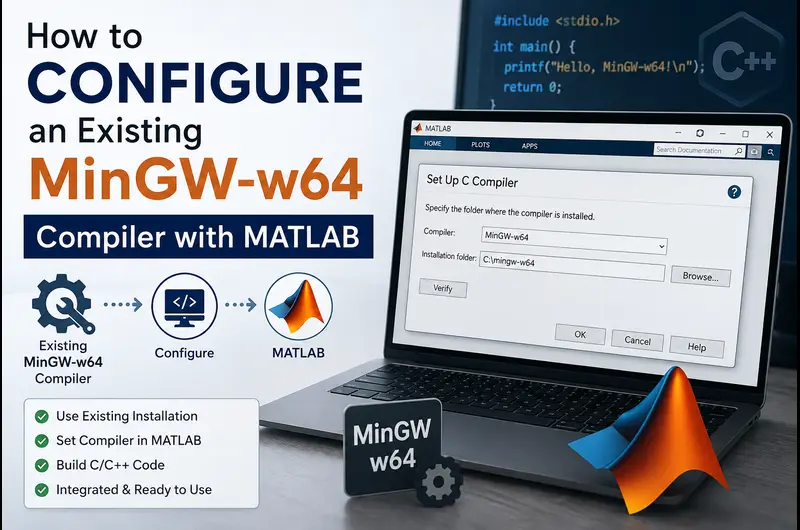
If you already have MinGW-w64 installed on your Windows computer (for instance, through Code::Blocks, CLion, MSYS2, or standalone installation), you do not need to download the full MATLAB Add-On package from scratch. You can configure MATLAB to detect and use your existing MinGW installation for compiling MEX files, C/C++ code, and Simulink S-functions.
Here is the complete step-by-step guide to configuring your existing MinGW compiler in MATLAB.
Step 1: Check Your MinGW Architecture & Installation Path
Before connecting MinGW to MATLAB, ensure your existing installation meets MATLAB's requirements:
- 64-bit Architecture: Modern 64-bit MATLAB requires x86_64 MinGW-w64. A 32-bit (i686) compiler will cause architecture mismatch errors.
- No Spaces in the Path: MinGW must be installed in a folder path with no spaces (e.g.,
C:\mingw64orC:\msys64\mingw64). Avoid directories likeC:\Program Files\MinGW.
Step 2: Set the MW_MINGW64_LOC Environment Variable
MATLAB locates third-party MinGW installations by checking a dedicated environment variable named MW_MINGW64_LOC.
Option A: Configure for the Current MATLAB Session
In the MATLAB Command Window, run the following command (replace C:\mingw64 with your actual MinGW root folder):
% Set the MinGW root folder (Do not include \bin)
setenv('MW_MINGW64_LOC', 'C:\mingw64');
Important: Set the path to the root folder of MinGW-w64 (the folder that containsbin,include, andlib), not the\binfolder itself.
Option B: Configure Permanently in Windows (Recommended)
To avoid setting the variable every time you restart MATLAB, add it permanently to Windows System Environment Variables:
- Press Win + R, type
sysdm.cpl, and press Enter. - Navigate to the Advanced tab and click Environment Variables.
- Under System Variables, click New...
- Enter the following details:
- Variable name:
MW_MINGW64_LOC - Variable value:
C:\mingw64(your MinGW root path)
- Variable name:
- Click OK on all windows, then restart MATLAB.
Step 3: Run MEX Setup in MATLAB
Once the environment variable is configured, instruct MATLAB to register the C and C++ compilers:
% Setup C++ compiler
mex -setup C++

% Setup C compiler
mex -setup C
You should see a confirmation message similar to:
MEX configured to use 'MinGW64 Compiler (C++)' for C++ language compilation.
Step 4: Verify MEX Compilation with a Test File
To confirm that your compiler builds working binaries, compile and run MATLAB's built-in yprime.c test example:
% Navigate to the examples directory
cd(fullfile(matlabroot, 'extern', 'examples', 'mex'));

% Compile the C MEX source file
mex yprime.c

% Test the compiled MEX function
yprime(1, 1:4)
If the function outputs 2.0000 8.9685 4.0000 -1.0947, your MinGW compiler is fully operational!
Common Troubleshooting & Fixes
1. "No supported compiler was found"
- Verify that the
MW_MINGW64_LOCpath containsbin\gcc.exeandbin\g++.exe. - Ensure there are no trailing backslashes in the variable path (use
C:\mingw64, notC:\mingw64\). - Confirm your MinGW is 64-bit by running
gcc -vin the Windows Command Prompt (look forTarget: x86_64-w64-mingw32).
2. MSYS2 MinGW-w64 Users
If you installed MinGW through MSYS2, set the variable to the mingw64 directory inside MSYS2:
setenv('MW_MINGW64_LOC', 'C:\msys64\mingw64');
mex -setup C++
Frequently Asked Questions
Do I need to install Microsoft Visual Studio if I use MinGW?
No. MinGW-w64 is a lightweight, free, and fully functional GCC/G++ compiler for compiling standard MEX files and MATLAB Coder / Simulink models without requiring Microsoft Visual Studio.
Why shouldn't I include the "\bin" folder in MW_MINGW64_LOC?
MATLAB's internal MEX build scripts expect the root folder of the MinGW installation and automatically append \bin, \include, and \lib during compilation. Specifying C:\mingw64\bin will break the path resolver.
Executable MATLAB Script & Model Setup
%% 1. Set MinGW-w64 Root Directory
setenv('MW_MINGW64_LOC', 'C:\mingw64');

%% 2. Configure C & C++ Compilers
mex -setup C++
mex -setup C

%% 3. Compile and Run Test MEX File
cd(fullfile(matlabroot, 'extern', 'examples', 'mex'));
mex yprime.c
yprime(1, 1:4)Related Verified MATLAB & Simulink Projects
Need pre-built, debugged Simulink models with complete parameter initialization scripts and documentation? Explore top related solutions:
Common Engineering Troubleshooting & Q&A
Frequently encountered bugs, solver convergence issues, and implementation questions answered by our engineering mentors:
Recommended Engineering Articles
Need Custom MATLAB / Simulink Implementation?
Our team of PhD engineers build custom simulation plants, train machine learning agents, tune PID/MPC controllers, and deliver complete, executable code with Turnitin reports.